Eliminating Duplicate File Versions In Project Management
Have you ever spent precious minutes (or hours) searching for the right version of a file? You’re not alone. File duplication is silently sabotaging project timelines and team sanity across organizations worldwide.
Key Takeaways: Duplicate File Versions In Project Management
- Duplicate file versions cost businesses an average of 5 hours per employee weekly in productivity losses and create significant version control issues.
- Implementing standardized naming conventions with clear version numbers (e.g., ProjectX_Scope_v1.2) creates immediate file organization benefits.
- Cloud-based collaboration tools like Google Workspace and Microsoft 365 can virtually eliminate file duplication by enabling real-time collaboration.
- Regular file audits help identify and consolidate duplicate files, establishing a single source of truth for all project documentation.
- Routine, a project management platform, helps teams centralize documentation and implement robust version control systems that prevent file duplication issues.
In today’s digital workspace, where remote collaboration has become the norm, managing file versions efficiently isn’t just good practice — it’s essential for project success. There are numerous examples of where implementing proper project file management systems can transform chaotic document workflows into streamlined processes that save teams countless hours and prevent critical errors.
Let’s explore how to eliminate the duplicate file versions in project management nightmare once and for all, starting with understanding exactly why it’s such a productivity killer.
The Hidden Cost of File Chaos: Why Duplicates Drain Your Team’s Productivity
Duplicate files are more than just a minor annoyance—they’re a significant drain on resources and productivity. When team members create multiple versions of the same document, confusion reigns. Which version contains the most recent updates? Who made the last changes? These questions consume valuable time that could be spent on actual project tasks.
Studies show that knowledge workers spend an average of 5 hours per week searching for information or recreating content that already exists but can’t be found. That translates to roughly 250 hours per year—more than six weeks of productivity—lost to disorganization.
Beyond wasted time, duplicate files lead to fragmented information, inconsistent messaging, and costly errors when outdated information is accidentally used in client-facing materials. Storage costs also multiply as redundant files consume precious server space or cloud storage allocation.
“The most expensive words in business are ‘Where is that file?’ followed closely by ‘I’ll just create a new version.'” — Project Management Institute
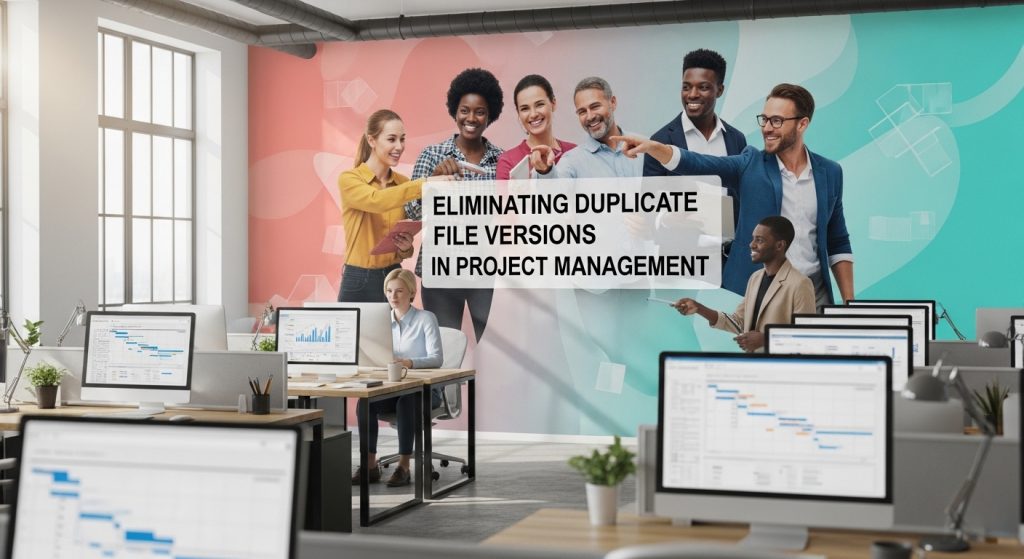
7 Warning Signs You Have a File Version Problem
Before we dive into solutions, let’s identify if your team is suffering from version control issues. Recognizing the symptoms is the first step toward implementing an effective cure.
Most organizations don’t realize how severe their file management problems are until a major issue occurs. By then, the damage is already done: missed deadlines, incorrect deliverables, or embarrassing client presentations.
Here are the telltale signs your project management documentation needs intervention:
- Team members regularly email files back and forth instead of collaborating in a shared space
- You find multiple copies of the same file with slight variations scattered across folders
- People frequently ask “Is this the latest version?” in meetings or chats
- Important feedback or edits go missing between versions
- You’ve experienced delivering the wrong version of a document to stakeholders
- Your storage costs keep increasing despite not taking on significantly more projects
- Files contain contradictory information depending on which version you open
Missing Updates in Critical Documents
Perhaps the most dangerous consequence of duplicate files is when critical updates disappear into the void. This happens when a team member makes changes to version A, while others continue working on version B, unaware that important modifications exist elsewhere.
| Scenario | Impact | Prevention Strategy |
|---|---|---|
| Budget update in finance copy doesn’t reach project manager | Project overspends by 15% | Centralized document with change tracking |
| Client feedback incorporated in designer’s version only | Final deliverable missing requested changes | Single feedback collection point |
| Schedule change in team leader’s file not propagated | Resources allocated to wrong timeline | Real-time collaboration platform |
Team Members Working on Different Versions
When multiple team members work independently on different versions of the same file, reconciling their changes becomes nearly impossible. Without a clear system, people naturally create local copies, make their edits, and then struggle to integrate them back into a master document.
This leads to duplicated effort when multiple people solve the same problem unaware of each other’s work. It also creates tension when conflicting changes must be resolved, often resulting in one person’s work being discarded entirely.
Files with Names Like “FINAL_FINAL_v2_APPROVED”
We’ve all seen them—or perhaps even created them ourselves. File names that grow increasingly desperate as versions multiply: “Budget_2023_FINAL.xlsx” followed by “Budget_2023_FINAL_REVISED.xlsx” and the inevitable “Budget_2023_FINAL_REVISED_APPROVED_USE_THIS_ONE.xlsx.” This naming chaos is a clear indicator of broken file management processes.
When file names require this level of clarification, it shows that your team lacks a standardized naming convention and proper version control. The resulting confusion wastes time and increases the risk of using outdated information. Even worse, these descriptive but inconsistent names make it nearly impossible to automate file management or implement systematic organization.
Storage Costs Spiraling Out of Control
While cloud storage may seem inexpensive at first glance, the costs add up quickly as duplicate files multiply across your organization. Many companies find their storage needs inexplicably increasing year over year, even when the actual volume of projects remains relatively stable.
The real cost isn’t just in storage fees but in the reduced efficiency of systems struggling to index and search through redundant files. Backups take longer, searches return confusing results, and your IT team spends valuable time managing unnecessary data. For large organizations, duplicate files can account for 30-40% of total storage usage—a significant waste of resources.
Smart Naming Conventions That Prevent Duplication
Establishing clear naming conventions is the foundation of effective file management. A well-designed naming system makes files easily identifiable and conveys essential information at a glance. More importantly, it eliminates the confusion that leads team members to create duplicates in the first place.
The best naming conventions balance brevity with informativeness. They should be consistent across your organization but flexible enough to accommodate different project types and departments. Above all, they must be simple enough that everyone on your team will actually use them.
Version Numbers vs. Dates: Which Works Better?
When tracking file versions, you have two primary options: version numbers (v1.0, v1.1, v2.0) or dates (2023-10-15). Each approach has its advantages and ideal use cases.
Version numbers work best for documents that undergo discrete, intentional revisions. They clearly communicate the file’s evolution and major versus minor updates (v1.1 suggests a small change, while v2.0 indicates a significant revision). This approach is ideal for deliverables, reports, and other formal documents where you need to track specific iterations.
Date-based versioning excels for documents that change frequently or continuously. This approach removes the burden of manually incrementing version numbers and provides an instant chronology of changes. Financial data, ongoing research, and living documents benefit from date-based versioning, especially when using ISO format (YYYY-MM-DD) for easy sorting.
| Versioning Method | Best For | Example Naming Format |
|---|---|---|
| Sequential (v1, v2) | Client deliverables, formal documents | ProjectName_DocumentType_v2.0.docx |
| Date-based | Frequently updated working files | ProjectName_DocumentType_2023-10-15.xlsx |
| Hybrid | Long-term projects with multiple stakeholders | ProjectName_DocumentType_v2.0_2023-10-15.pptx |
Project Codes That Keep Everything Organized
For organizations managing multiple projects simultaneously, incorporating project codes into file names creates an additional layer of organization. A good project code system allows for immediate identification of the project context without requiring lengthy descriptive text in every file name.
Effective project codes are typically short (2-5 characters), unique, and follow a consistent pattern that conveys meaningful information. For example, client initials followed by a sequential number (AC01) or department code plus project type and number (MKT-WEB-22) can instantly communicate important context while keeping file names manageable.
Examples of Naming Structures That Actually Work
“The best file naming convention is one that your team will actually follow. Simplicity and clarity beat comprehensiveness every time.” – Digital Asset Management Association
Based on our experience working with hundreds of project teams, here are naming structures that consistently deliver results:
- For client deliverables: ClientName_ProjectCode_DocumentType_v1.0.extension
- For internal working documents: DeptCode_ProjectName_DocumentName_YYYY-MM-DD.extension
- For recurring reports: ReportName_Period_Status.extension (e.g., BudgetReport_Q3-2023_Draft.xlsx)
- For collaborative documents: TeamCode_TopicName_Owner.extension
- For review processes: DocumentName_ReviewStage_Reviewer.extension
Cloud-Based Solutions That End Version Confusion
While good naming conventions provide a solid foundation, modern cloud-based collaboration tools take file management to the next level by virtually eliminating the need for duplicate files. These platforms maintain a single version of each document while preserving the complete history of changes, allowing team members to work together in real-time.
Google Workspace vs. Microsoft 365: Feature Comparison
The two dominant players in cloud collaboration—Google Workspace and Microsoft 365—offer powerful tools for preventing file duplication. While both platforms enable real-time collaboration, they approach version control with slightly different philosophies and feature sets that might make one a better fit for your organization.
Google Workspace prioritizes simplicity and real-time collaboration, with all changes automatically saved and a revision history that tracks who made what changes when. Microsoft 365 offers deeper integration with traditional desktop applications and more granular control over the document lifecycle, including formal check-in/check-out procedures in SharePoint.
Feature Google Workspace Microsoft 365 Real-time collaboration Native, seamless experience Available, more robust in web apps Version history Automatic, unlimited for Docs/Sheets/Slides Comprehensive, configurable retention Access controls Simple sharing model Advanced permissions through SharePoint Offline capabilities Limited but improving Extensive through desktop apps Integration ecosystem Growing, web-focused Mature, enterprise-oriented The best platform for your team ultimately depends on your specific workflows, existing technology ecosystem, and collaboration style. Many organizations successfully use both platforms for different purposes, leveraging the strengths of each for appropriate use cases.
Dedicated Version Control Systems for Complex Projects
For teams working with complex file types or requiring more robust tracking than what cloud office suites provide, dedicated version control systems offer industrial-strength solutions. These platforms, originally designed for software development, now support a wide range of file types and workflows. For example, Autodesk provides tools that cater to such needs, ensuring efficient management and tracking of complex projects.
Systems like GitHub, GitLab, and Bitbucket excel at tracking granular changes and managing complex collaboration patterns, including branching and merging. For creative teams, platforms like Abstract (for design files) and Frame.io (for video) provide specialized version control tailored to media-specific workflows. Even traditional project management tools now incorporate version control features, with platforms like Routine offering integrated document management alongside task tracking.
How to Set Up Automatic Version Control
Implementing automatic version control doesn’t have to be complicated. With a systematic approach, you can transform your team’s file management practices in just a few weeks. The key is breaking the process down into manageable steps and securing buy-in at each stage.
Step 1: Audit Your Current Files
Begin with a thorough audit of your existing file ecosystem. This baseline assessment reveals the true extent of duplication and helps you identify patterns in how your team currently manages versions. Look for clusters of similar file names, examine folder structures, and note where confusion typically occurs.
During this audit, categorize your documents by type, frequency of updates, number of collaborators, and importance. This classification will guide your decisions about appropriate version control methods for different document categories. Pay special attention to files that frequently cause confusion or have led to errors in the past—these are your priority targets for improvement.
Step 2: Choose Your Version Control System
Select a version control approach that aligns with your team’s specific needs and technical capabilities. For many organizations, this decision isn’t one-size-fits-all—you might implement different solutions for different document types or departments.
Consider factors like team size, geographic distribution, technical expertise, existing software investments, and security requirements. While cloud-based collaboration tools work well for most business documents, specialized content may require dedicated version control systems. Whatever you choose, prioritize solutions that integrate with your existing workflows rather than forcing dramatic changes.
Step 3: Create Clear Team Guidelines
Document your version control protocols in straightforward, accessible guidelines that everyone can understand and follow. Avoid technical jargon and focus on practical examples relevant to your team’s daily work. Address common scenarios explicitly: “When you need to share feedback on a document, do this…” rather than abstract rules.
Effective guidelines cover not just the mechanics of the system but also the expected behaviors. Clarify roles and responsibilities for document creation, editing, approval, and archiving. Include visual examples of proper naming conventions and screenshots of key actions in your chosen platform. Make these guidelines easily accessible from within your documentation system itself.
Step 4: Migrate Existing Files
Moving to your new system requires careful migration of existing files. Rather than attempting to move everything at once, prioritize active projects and frequently accessed documents. For historical files, consider a phased migration or simply establishing clear archives that won’t be confused with current work.
Use the migration process as an opportunity to clean house, eliminating redundant files and consolidating fragmented information. Document the location of migrated files and establish redirects or signposts in old locations to help team members adjust to new file paths. For complex migrations, assign specific team members to oversee the transition of different document categories.
Step 5: Train Your Team
Even the best system fails without proper training. Schedule focused training sessions tailored to different user roles, keeping sessions brief and task-oriented. Supplement live training with short video tutorials that team members can reference when needed.
Create a safe space for questions and acknowledge that adaptation takes time. Identify and empower system champions within each team who can provide peer support and model proper usage. Follow up training with checks after one week and one month to address emerging questions and reinforce best practices.
Real-Time Collaboration: The Ultimate Duplicate Killer
The most effective way to eliminate duplicate files is to remove the need for them entirely. Real-time collaboration tools make this possible by allowing multiple team members to work on the same document simultaneously, with all changes immediately visible to everyone. This approach fundamentally changes how teams interact with documents.
Benefits of Simultaneous Editing
Simultaneous editing transforms documents from static files into living workspaces where ideas develop collectively. When team members can see changes as they happen, they gain immediate context for decisions and can respond to new information instantly. This visibility eliminates the confusion that leads to duplicate file versions in project management.
Beyond preventing duplication, real-time collaboration accelerates work dramatically. Projects that once required days of back-and-forth file sharing can now be completed in a single collaborative session. The energy and momentum of synchronous work often produces better results faster, particularly for creative tasks that benefit from immediate feedback.
Organizations that adopt real-time collaboration report up to 30% improvements in project completion times and significant reductions in miscommunication. The transparency of this approach also creates natural accountability, as contributions are immediately visible to the entire team.
Comment and Approval Workflows
Modern collaboration platforms enhance version control with structured comment and approval workflows. Instead of creating new file versions to suggest changes, team members can add comments directly within the document that prompt discussion while preserving the integrity of the master file.
These commenting systems typically include resolution tracking, threading for extended discussions, and notification systems to alert relevant team members. More sophisticated platforms add approval workflows that formalize the review process, capturing sign-offs without generating new file versions at each stage. This approach maintains a clear audit trail while preventing the proliferation of “approved” file copies.
History Tracking for Accountability
Comprehensive history tracking replaces manual version labeling with automatic, granular change logs. Every modification is recorded with timestamps and user attribution, creating complete transparency around a document’s evolution. This capability eliminates the fear that drives many team members to create backup copies—they can always see what changed, when, and by whom.
Clean-Up Day: How to Fix Your Duplicate Disaster
If your organization is already drowning in duplicate files, don’t despair. A systematic cleanup approach can bring order to even the most chaotic file systems. The key is tackling the problem methodically rather than attempting to solve everything at once.
Start by addressing active projects where duplication is causing immediate problems, then gradually expand to historical files. Designate a “duplicate detective” for each department who can lead the cleanup effort with appropriate context for that team’s documents.
- Schedule a dedicated cleanup day with clear goals and participation from all team members
- Establish a temporary holding area for files whose status is uncertain
- Create a simple decision tree for determining which version to keep
- Document decisions about canonical versions to prevent future confusion
- Use the cleanup as an opportunity to reinforce new naming conventions
Remember that perfect file organization isn’t the goal—significant improvement is. Even reducing duplication by 70-80% will produce dramatic benefits in terms of reduced confusion and improved efficiency.
Identifying the “Single Source of Truth”
For each document type in your system, establish a canonical version that serves as the single source of truth. This authoritative version should be clearly marked, easily accessible, and maintained under appropriate version control. All team members need to know where to find this definitive version and understand the process for suggesting changes.
Determining which version should become the canonical one requires careful evaluation. Consider factors like completeness, accuracy, formatting quality, and inclusion of critical metadata. In cases where multiple versions contain unique valuable content, you may need to create a new consolidated version that incorporates all relevant information before discarding the duplicates.
Tools That Find and Remove Duplicates
Specialized software can significantly accelerate the duplicate identification and removal process, particularly for large file repositories. These tools scan your storage systems, identify potential duplicates based on content similarity (not just file names), and facilitate bulk cleanup actions.
Tool Type Best For Limitations Local duplicate finders (e.g., CCleaner) Individual workstations, simple cleanup Cannot analyze cloud storage or networked drives Enterprise duplicate management (e.g., Egnyte) Organization-wide cleanup, policy enforcement Higher cost, more complex implementation Cloud platform tools (e.g., OneDrive file deduplication) Existing cloud storage users, basic duplicate detection Limited to exact duplicates, fewer customization options While these tools can identify exact duplicates with high accuracy, they may struggle with near-duplicates that contain minor variations. Human judgment remains essential for determining which versions to preserve, particularly for complex documents where context matters. Use automated tools to identify candidates for consolidation, but rely on knowledgeable team members for final decisions.
After completing a major cleanup, implement automated monitoring to detect new duplicate patterns before they become problematic. Many enterprise storage platforms include analytics that can alert administrators to unusual file proliferation or redundancy trends.
Project Manager’s Checklist for Version Control Success
Project managers play a crucial role in establishing and maintaining effective version control. Use this checklist to ensure your team has the framework needed to eliminate duplicate files and maintain clean, efficient documentation:
- Document clear naming conventions specific to each project and file type
- Define roles and responsibilities for document creation, editing, and maintenance
- Establish review cycles and explicitly communicate who approves what documents
- Create templates with proper versioning fields pre-configured
- Set up centralized storage with appropriate access permissions
- Implement real-time collaboration tools for frequently edited documents
- Configure automated backup systems separate from version control
- Schedule regular file audits to prevent duplicate accumulation
- Train new team members on version control protocols during onboarding
- Maintain a document catalog that identifies the current version of key deliverables
FAQ’s AboutDuplicate File Versions In Project Management
As you implement improved version control systems, team members will naturally have questions about the new processes. Addressing these concerns proactively helps secure buy-in and ensures consistent adoption.
How do I convince my team to stop saving local copies of files?
The habit of saving local copies usually stems from legitimate concerns about access, data loss, or the need to work offline. Address these underlying needs directly by ensuring your version control system provides reliable offline access, robust backup, and clear file history. Demonstrate how the new system protects their work more effectively than local copies.
Focus on the benefits to team members themselves rather than abstract organizational advantages. Show how proper version control saves them time, reduces frustration, and eliminates embarrassing errors. Share specific examples of problems that local copies have caused in your organization to make the issue tangible.
What’s the difference between version control and file backup?
Version control tracks the evolution of files through intentional changes, allowing you to access specific points in a document’s development history. Backup systems, by contrast, create protected copies of files at scheduled intervals to safeguard against data loss from system failures, accidents, or security incidents. Both are essential but serve different purposes in your documentation strategy.
Can I recover previous versions if someone overwrites an important file?
Yes, proper version control systems make recovery simple. Cloud platforms like Google Workspace and Microsoft 365 maintain comprehensive version histories that allow you to revert to any previous state with a few clicks. Even without formal version control, most enterprise storage systems include some form of file versioning or “trash” functionality that enables recovery of overwritten content.
For critical documents, consider implementing additional safeguards like restricted edit permissions during certain project phases or approval workflows that prevent accidental overwrites. These preventive measures complement the recovery capabilities of your version control system.
How long should we keep old versions of project files?
Retention needs vary based on document type, industry regulations, and organizational requirements. Generally, maintain complete version histories during active project phases, then preserve major milestone versions after project completion. For most business documents, keeping versions that represent significant changes or formal approvals provides adequate historical context without excessive storage requirements.
Develop a tiered retention policy that balances accessibility, storage costs, and compliance requirements. Critical documents might warrant indefinite version history, while working files can follow a shorter retention schedule. Document your retention decisions in a formal policy that aligns with your broader information governance strategy.
Is there a way to merge changes from different file versions?
For text-based documents, modern collaboration tools include comparison and merge capabilities that can integrate changes from multiple versions. Microsoft Word’s Compare and Combine features, for example, allow you to selectively incorporate edits from different document versions. For more complex file types, dedicated version control systems like Git offer sophisticated merging tools designed for collaborative workflows.
When automatic merging isn’t possible, create a structured process for manual consolidation. Designate a team member to compile changes from different versions, perhaps using color-coding or annotation to track the source of each modification. This approach requires more effort but ensures that valuable contributions aren’t lost when files have diverged significantly.
Preventing version divergence in the first place remains the most efficient approach. Encourage simultaneous editing through real-time collaboration tools whenever possible, and establish clear hand-off procedures when sequential editing is necessary.
By implementing these version control strategies, your team can eliminate the productivity drain of duplicate files and focus their energy on delivering successful projects. Remember that cultural change takes time—celebrate small wins and gradually build toward more sophisticated practices as your team experiences the benefits of streamlined file management.
The confusion of “Final_v2_UPDATED.docx” ends today with a system that guarantees everyone works on the right file every time.
Our version control protocols and naming convention cheat sheets are designed to eradicate duplication errors instantly.
Click through to https://bestprojectkits.com and download the discipline your team needs to stay perfectly aligned.
===========================================================================
ABOUT THE AUTHOR
Gerard Mohamed is a project management expert with over 30 years of hands-on experience managing high-stakes projects in the petrochemical and marine engineering sectors.
He holds an MBA from Business School Netherlands and a BCom (Hons) with dual majors in Project Management and Advanced Marketing. As a qualified Marine Engineer, Gerard serves as Chairman of the Cape Branch of the South African Institute of Marine Engineers and Naval Architects (SAIMENA) and sits on their National Executive Committee.
Gerard is a fully accredited Facilitator and Assessor for Project Management under South Africa’s SETA and QCTO, and teaches Project Management part-time at two leading business colleges.
After decades of struggling to find practical, field-tested project templates, he created BestProjectKits.com — a comprehensive library of 3,500+ professionally designed templates that solve real-world project challenges across 20+ industries.
→ Explore the complete template library at BestProjectKits.com
→ Connect with Gerard: [admin@bestprojectkits.com]
=========================================================================